1. Getting started
What Contentine Analyze does
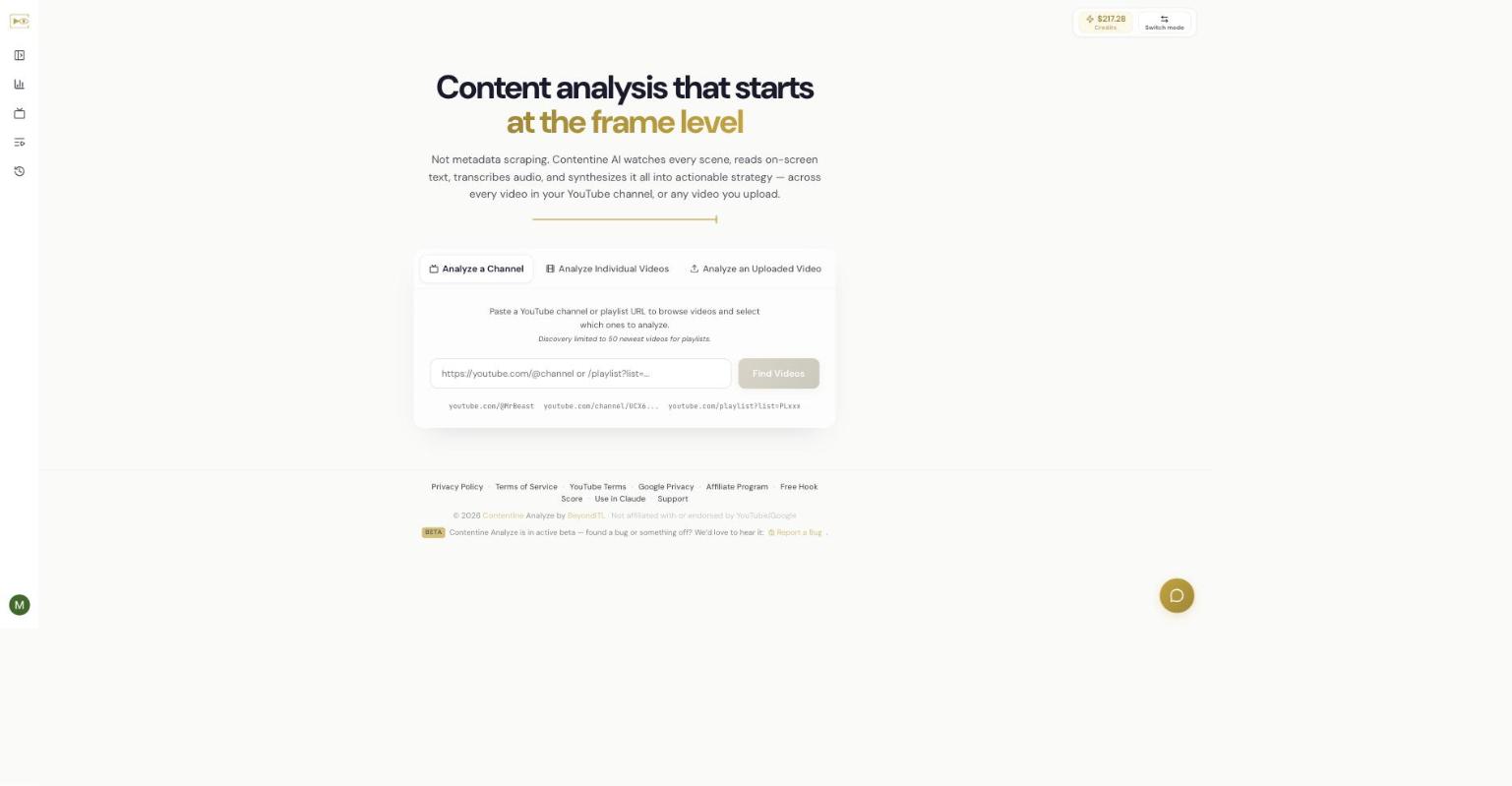
Contentine Analyze watches videos and tells you why they work. You give it a YouTube video, a whole channel or playlist, or a video file you upload, and the AI reads every scene, transcribes the speech, reads on-screen text, and produces a report: scores for the hook, thumbnail, pacing and SEO, a scene-by-scene timeline, a full transcript, strengths and specific improvements, and more. It is analysis you can act on, not a page of view counts.
Creating an account
- Go to analyze.contentine.ai.
- Choose Sign Up Free. You can sign up with Google or an email address.
- New accounts start with free trial credits, enough to try a short analysis.
- Check your inbox and click the verification link. Until your email is verified, the app will ask you to confirm it before you can analyze.
The two modes
Contentine Analyze runs in one of two modes. You switch between them with Switch mode at the top right.
Quick Mode — System keys, uses your credits. Contentine handles everything with its own connections to Google. You pay with credits from your balance. This is the simplest way to start, and it is what most people use.
My Keys — Use your own API keys, free. You bring your own Google Gemini API key (and optionally a YouTube key). The base analysis runs on your key and Google bills you directly; Contentine only charges a small platform fee from your credits. This suits heavy users who already have Google API access and want to pay Google directly.
Which mode should you choose?
Start with Quick Mode. It has nothing to set up — paste a link and go. Move to My Keys later if you run many analyses and would rather manage your own Google usage and billing. You can switch modes at any time; your history and credits stay the same. My Keys is explained in full in Chapter 16.
Related
Independent AI-generated analysis. Not affiliated with or endorsed by YouTube. May contain errors.