2. Your first analysis
This walks you through analyzing one YouTube video by URL in Quick Mode. It takes a few minutes.
Step 1 — Paste the video link
On the home screen, choose the Analyze Individual Videos tab. Paste one or more YouTube video URLs, each on its own line.
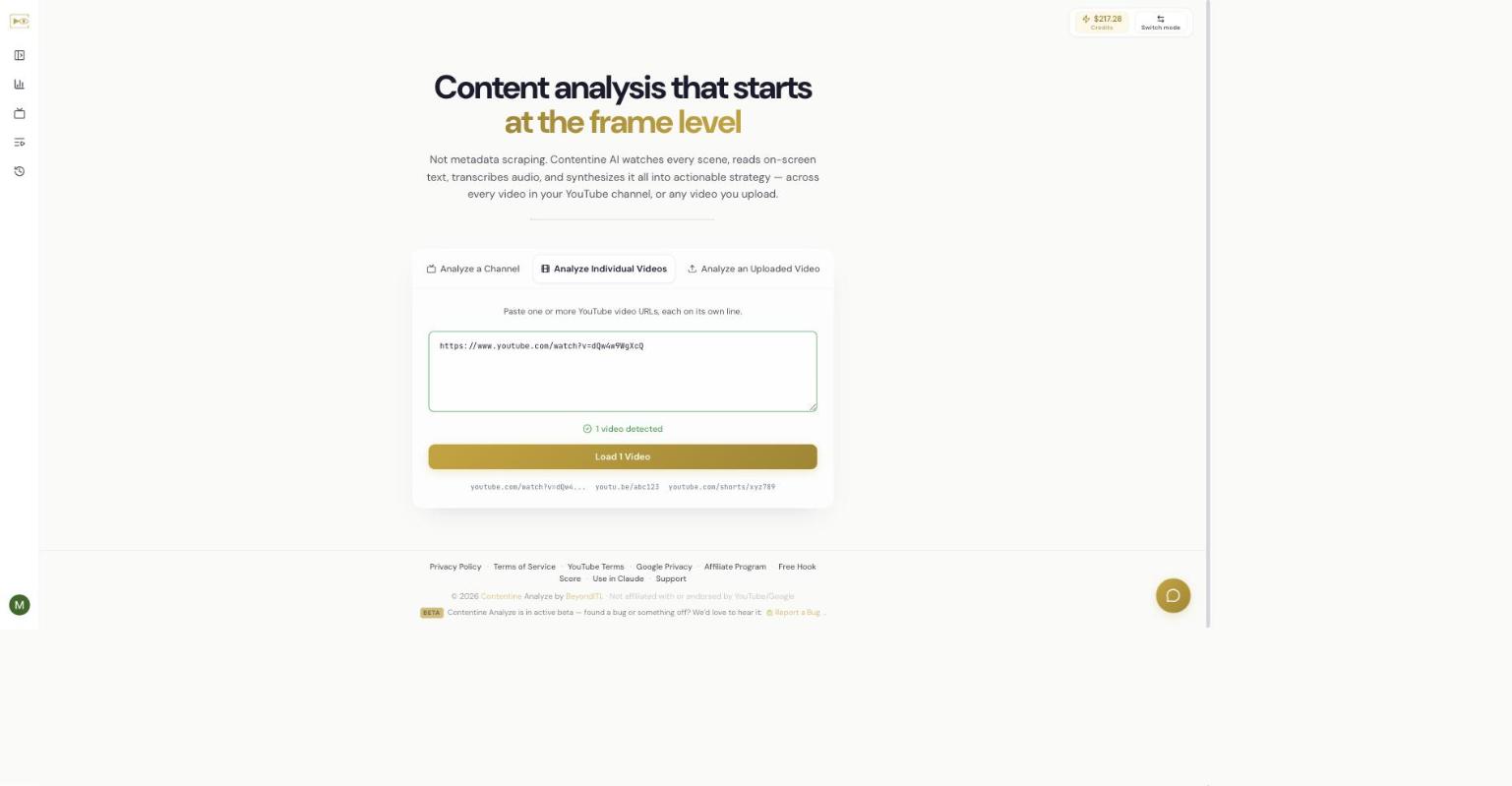
When the app recognizes a link it shows 1 video detected (or the count) and the button reads Load 1 Video. Select it.
Tip: to analyze a whole channel or playlist instead, use the Analyze a Channel tab and paste a channel or playlist URL. Playlist discovery is limited to the 50 newest videos.
Step 2 — Confirm the video, then continue
You will see the video you loaded with its thumbnail and basic details. Leave it checked and choose Next: Configure Analysis.
Step 3 — Configure the analysis
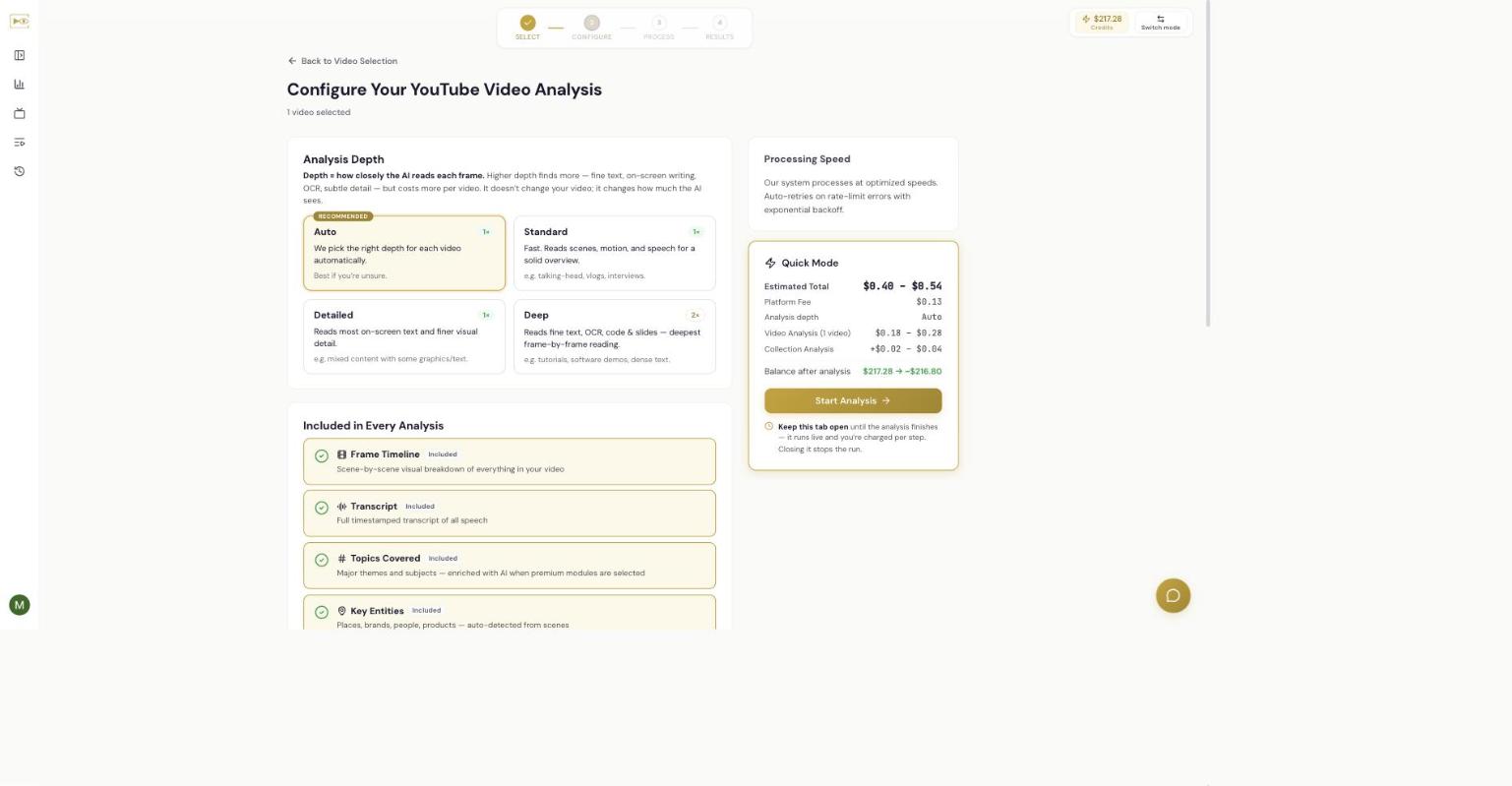
Two things matter here:
Analysis Depth — how closely the AI reads each frame. Auto is recommended and picks the right depth per video. Standard is a fast overview; Detailed reads most on-screen text; Deep reads fine text, code and slides frame by frame. Higher depth finds more but costs more. Depth does not change your video — it changes how much the AI looks at.
Included in every analysis — Frame Timeline, Transcript, Topics Covered, and Key Entities are always part of the report at no extra choice. You can optionally turn on Premium Insights (hook, pacing, thumbnail, strengths, SEO, competitive, audio health) for a deeper report; see Chapter 17.
Step 4 — Read the cost estimate
The Quick Mode card on the right shows what the run will cost before you commit:
- Estimated Total — a range, because the exact cost depends on how much the AI ends up reading.
- Platform Fee — the small fixed fee for the run.
- Balance after analysis — your credit balance if you proceed.
The estimate is a range, not a fixed price. You are charged per completed step as the analysis runs, so the final cost lands inside (or below) the range.
Step 5 — Start and wait
Choose Start Analysis. The Process screen shows live progress, a preview of the video, and a running log of each step.
Keep this tab open. The analysis runs in your browser and you are charged per completed step. Closing or reloading the tab stops the run.
A single short video usually finishes in a minute or two. Longer videos, deeper analysis depth, and more premium insights take longer. When it finishes, the app moves to Results and you can open the full report — covered next in Chapter 5.
Related
Independent AI-generated analysis. Not affiliated with or endorsed by YouTube. May contain errors.